

Connect to your Minecraft Java server
Find your server address in Dash and join from Minecraft: Java Edition in four steps.
Every Minecraft Java server in Dash has its own address. Players only need this address, no port: Dash creates the DNS records (including the SRV record) for you.
1. Copy the address
Open your server in Dash. On the Overview tab, the Connect card shows the address. Click the copy icon next to it.

2. Add the server in Minecraft
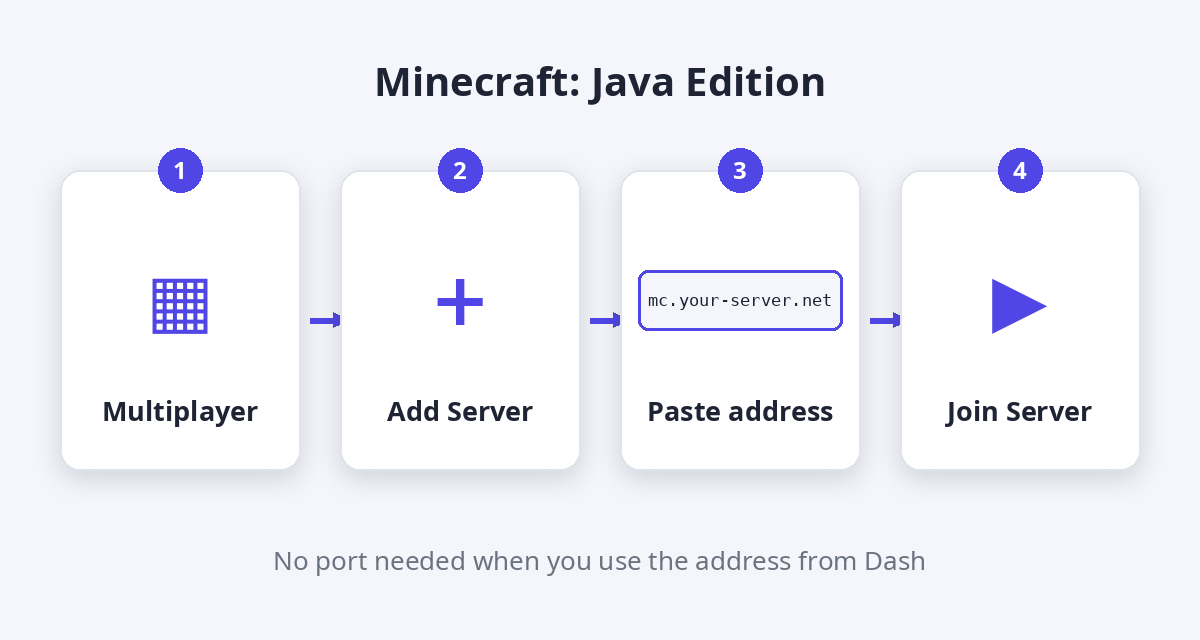
- Start Minecraft: Java Edition and choose Multiplayer.
- Click Add Server.
- Paste the address into Server Address and give the server a name.
- Click Done, select the server and click Join Server.
Your Minecraft version must match the server's version (shown on the Game tab). On Paper or Spigot, players with newer versions can also join when the server runs ViaVersion.
Mods and modpacks
On Forge, NeoForge, Fabric and modpack servers every player needs the same mods: install the same modpack and version in your launcher (CurseForge, Modrinth App or FTB App) before joining. Plugins on Paper or Spigot need nothing on the player's side.
It does not connect?
- The server must show Running in Dash. The first start can take a few minutes.
- A new address can take a few minutes to work everywhere. Until then, use the IP address and port from the Connect card.
- Whitelist on? Add the player on the Game settings tab.
- "Outdated client" or "Outdated server": the versions do not match.
- Still stuck? Open a support ticket and include the error message.