
Moving your website to a new host can quickly become stressful when valuable data is at risk. For Swiss business owners and developers, the fear of losing files or customer information during migration is real. Applying the rule of three for data backups, with copies in different locations, shields your website from hardware failures and accidental loss. This guide walks you through critical steps to create safe backups, secure your new environment, and carry out a migration that keeps your online presence protected and stable.
Table of Contents
- Step 1: Prepare and Back Up Your Current Website
- Step 2: Select and Configure Your New Hosting Environment
- Step 3: Transfer Website Files and Databases Securely
- Step 4: Update DNS Settings and Monitor Site Performance
- Step 5: Test and Validate the Migrated Website
Quick Summary
| Main Insight | Explanation |
|---|---|
| 1. Backup Your Current Website | Create multiple, reliable backups of your website’s files, databases, and configurations before migrating to prevent data loss during the transition. |
| 2. Choose the Right Hosting Environment | Assess your website’s needs and match them with appropriate hosting types to ensure optimal performance and security for your new site. |
| 3. Securely Transfer Files and Databases | Use secure methods like SFTP for transfers and verify the integrity of files and databases to prevent data interception and corruption during migration. |
| 4. Update DNS Settings Properly | After migration, correctly update your DNS settings to direct visitors to your new host, and monitor performance during the propagation period for issues. |
| 5. Thoroughly Test Your Migrated Website | Conduct comprehensive tests on all features and functionalities post-migration to ensure everything operates smoothly and to maintain user trust. |
Step 1: Prepare and Back Up Your Current Website
Before moving to a new host, you need to protect your digital assets by creating reliable backups of everything. This step ensures that if anything goes wrong during migration, you can always restore your original website. Think of backups as your safety net.
Start by understanding what needs backing up. Your website consists of several components that all require protection.
- Database files contain all your content, user data, and settings
- Website files and folders include your HTML, CSS, images, and plugins
- Email accounts and configurations if you host email through your current provider
- Custom configurations like SSL certificates and DNS records
Most hosting providers offer automated backup tools through your control panel. Log into your current hosting account and look for a backup or backup manager option. You can typically download a complete backup of your website with just a few clicks. This backup file usually compresses everything into a single archive.
Following the principle of data backup best practices, create at least three copies of your website data stored on different media types. Keep one copy on an external hard drive at your office, another in cloud storage like Google Drive or Dropbox, and a third with your new hosting provider once you’re ready to migrate.
Verify that your backups actually work before proceeding. Extract the backup file to a test folder on your computer and confirm all your files are present and readable. A backup that doesn’t restore is just a file taking up space.
Document what you’re backing up and when. Write down the backup date, file size, and what hosting control panel you used. This simple step saves tremendous frustration if you need to reference specific backup versions later.
Create multiple backup copies stored in different locations before migration begins. This protects against hardware failures, malware, and unexpected data loss during the transfer process.
Pro tip: Schedule automatic daily backups through your current host if available, and download a complete backup 24 hours before your migration date to capture any last-minute changes to your site.
Step 2: Select and Configure Your New Hosting Environment
Choosing the right hosting environment sets the foundation for a smooth migration. You need to match your new host’s specifications with your website’s requirements before transferring anything. This means understanding what your site needs to run properly.
Start by evaluating what type of hosting suits your needs. Different websites have different demands.
- Shared hosting works well for small blogs and startup websites with moderate traffic
- Virtual Private Servers (VPS) offer more control and resources for growing businesses
- Dedicated servers provide maximum performance for high-traffic sites and complex applications
- Managed hosting handles technical setup and updates for you
Once you’ve selected your hosting type, access your control panel and begin the configuration process. Most hosts provide setup wizards to guide you through initial settings. You’ll typically need to configure your domain name, email accounts, and database parameters. Take time to review each setting rather than rushing through defaults.
Here is a comparison of common website hosting types and their best use cases:
| Hosting Type | Resource Level | Best For | Technical Skills Needed |
|---|---|---|---|
| Shared Hosting | Low | Small blogs, basic sites | Beginner |
| VPS (Virtual Private Server) | Medium | Growing business sites | Intermediate |
| Dedicated Server | High | High-traffic or custom apps | Advanced |
| Managed Hosting | Varies (typically high) | Businesses needing management | Beginner to Intermediate |
Secure your server environment immediately. Setting up SSL certificates for HTTPS encryption protects both you and your visitors. Enable firewalls and configure security permissions so only necessary services are accessible. Create strong passwords for all administrative accounts and consider using SSH keys for enhanced protection.
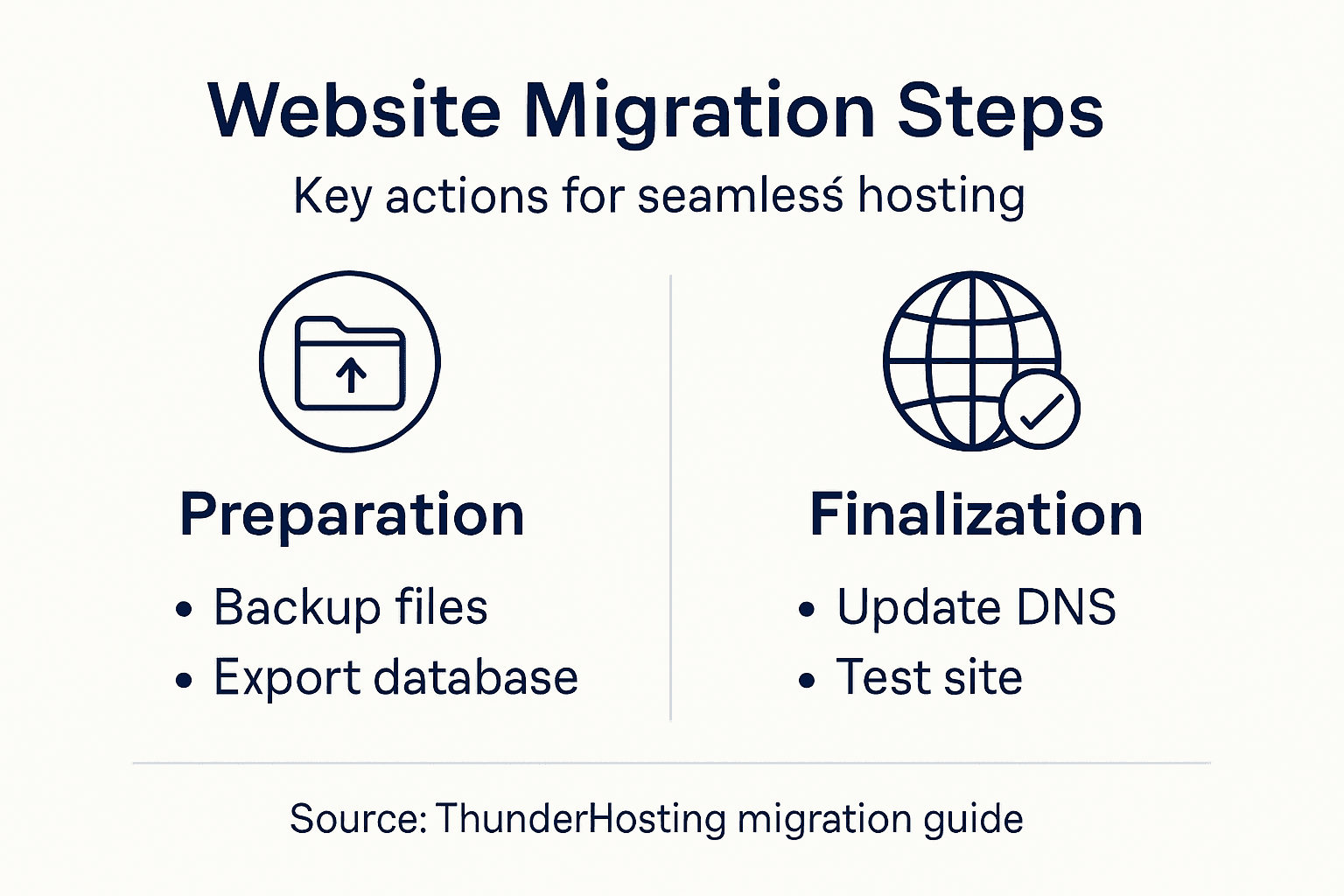
Configure your web server software to match your previous hosting setup. If your old host used Apache, stick with Apache. If you’re switching technologies, verify compatibility with your website code first. Ensure web server configuration aligns with your application requirements before migration.
Test basic functionality in your new environment before importing data. Create a test database and upload a simple file to confirm everything works. This identifies problems when they’re easiest to fix.
Configure security settings and SSL certificates before migrating your live website. A secure foundation prevents data breaches and protects your visitors from the moment they arrive.
Pro tip: Request a temporary domain or staging URL from your new host so you can test your full website in the new environment before pointing your live domain there.
Step 3: Transfer Website Files and Databases Securely
Moving your website files and database to your new host requires careful attention to security and accuracy. This step protects your data from interception and ensures nothing gets lost or corrupted during the transfer. You’re essentially copying your entire digital presence to a new location.
Choose a secure transfer method for your files. Your options include the following.
- SFTP (SSH File Transfer Protocol) encrypts file transfers and is considered the most secure option
- FTP with TLS encryption provides standard file transfer with added security layers
- Direct server migration tools some hosts offer built-in migration utilities that handle transfers automatically
- Command-line tools advanced users can use rsync or similar utilities for efficient transfers
Start by exporting your database from your old host. Most hosting control panels have a database management tool like phpMyAdmin. Select your database and export it as a SQL file, which creates a complete backup of all your content and settings. Download this file to your computer.

Transfer your database to the new host by creating a new database in your new control panel, then importing the SQL file you exported. Most hosts provide an import tool that guides you through the process. Verify the import completed successfully by checking that your data appears in the new database.
For website files, connect to your new host using HTTPS encryption protocols to protect sensitive data during transfer. Upload your website files to the appropriate directory, typically the public_html or www folder. You can use your host’s file manager or connect via SFTP using a tool like FileZilla.
After transferring everything, verify all files and databases are intact. Check that your website displays correctly by visiting it through your new host’s temporary domain. Test key functions like contact forms, logins, and database queries to ensure nothing was damaged during transfer.
Encrypt all data transfers using secure protocols like SFTP or HTTPS. Unencrypted transfers expose your website files and sensitive database information to potential interception by unauthorized parties.
Pro tip: Transfer during low-traffic hours to minimize impact on visitors, and inform users of potential downtime before beginning the migration process.
Step 4: Update DNS Settings and Monitor Site Performance
Updating your DNS settings points your domain name to your new hosting server. This critical step tells the internet where to find your website. DNS propagation takes time, so monitoring during this period ensures everything transitions smoothly.
Log into your domain registrar’s control panel. This is wherever you purchased your domain name, not your hosting account. Look for DNS settings, nameservers, or DNS management options. You’ll need to update the nameserver records to point to your new host’s nameservers.
Your new hosting provider gives you specific nameserver addresses. These typically look like ns1.yourhost.com and ns2.yourhost.com. Enter these nameservers into your domain registrar’s DNS settings, replacing the old ones completely. Save your changes.
DNS changes don’t happen instantly. Propagation typically takes 24 to 48 hours, though some records update within minutes. During this waiting period, different internet users might reach either your old or new server depending on their location and internet service provider.
Verify your DNS configuration using DNS verification tools to confirm nameservers are correctly updated. Command-line tools like nslookup or dig show whether DNS records point to your new host. Many online tools provide quick checks without technical knowledge required.
Monitor your site performance once DNS propagation completes. Check page load times, test all functionality, and review error logs for problems. DNS query logging helps identify anomalies and performance issues that might need attention.
Test from multiple locations and devices to ensure consistent access. Visit your website using different browsers and internet connections. Verify that emails still work properly if you’re using email associated with your domain.
DNS propagation takes time. Don’t panic if your site isn’t immediately accessible everywhere. Monitor performance metrics and resolve issues as they appear during the 48-hour propagation window.
Pro tip: Keep your old host active for at least 48 hours after updating DNS settings, in case you need to revert quickly if issues arise during propagation.
Step 5: Test and Validate the Migrated Website
Testing your migrated website thoroughly catches problems before your visitors encounter them. This step verifies that everything works as it did on your old host and that no data was lost or corrupted. Comprehensive testing builds confidence that your migration succeeded.
Start with basic functionality checks. Visit your website and navigate through different pages, testing core features.
- Homepage and navigation ensure all menus and links work correctly
- Contact forms and submissions verify that messages reach you properly
- User logins and registrations confirm authentication systems function
- File downloads test that PDFs, images, and other assets load without errors
- Email functionality check that contact notifications arrive in your inbox
Validate your website’s code structure using HTML markup validation tools to identify syntax errors or non-compliance issues. Valid code ensures compatibility across different browsers and devices. Fix any validation errors found during this process.
Test across multiple browsers and devices. Check your site on Chrome, Firefox, Safari, and Edge. Test on smartphones, tablets, and desktop computers to ensure responsive design works properly. Different users access your site from various platforms, so this verification matters.
Check page load times and performance. Slow sites frustrate visitors and hurt search rankings. Use tools like Google PageSpeed Insights to identify performance issues. Your new host should deliver faster speeds than your previous one.
Perform security testing and validation to ensure your migrated site meets security standards. Verify that SSL certificates work correctly, HTTPS connections are secure, and no vulnerabilities exist. Scan for broken security implementations that could compromise user data.
Test all integrations thoroughly. If your site connects to payment processors, email services, or third-party tools, verify these connections still function. Many migration problems hide in integration points.
Use this table as a reference for tasks to verify after migration is complete:
| Area to Test | What to Check | Why It Matters |
|---|---|---|
| Website Navigation | All pages and menus load correctly | Prevents broken user experience |
| Contact/Email Forms | Form submits deliver messages | Ensures communication reliability |
| User Account Functions | Logins, registrations, permissions | Maintains member access/control |
| File and Asset Delivery | Images, downloads, media open | Confirms complete data transfer |
| Third-Party Integrations | Payment, analytics, APIs functional | Guarantees business continuity |
Test everything before announcing your migration complete. One overlooked broken feature can damage user trust and your site’s reputation. Take time to be thorough.
Pro tip: Create a detailed testing checklist before migration and have team members test from different locations and devices to catch issues you might miss alone.
Simplify Your Website Migration with ThunderHosting Reliable hosting starts by choosing the right home for your website and securing a seamless migration. The article highlights common challenges like ensuring secure data transfers, managing DNS updates, and validating your site’s performance post-migration. These steps can feel overwhelming when you move your digital presence to a new environment but do not have to be stressful
At ThunderHosting we specialize in making website migrations painless with expert support and a variety of hosting solutions tailored to your needs. Whether you require shared hosting for a small blog or dedicated servers for high-traffic sites our scalable options covered in the article’s hosting discussion ensure your website runs smoothly. Plus you gain peace of mind with our free migration assistance and global data centers that boost performance
Start your migration knowing you have a trusted partner to protect your backups configure your new server securely and handle DNS transitions effortlessly. Visit ThunderHosting to explore our hosting plans and discover how our consultative support can guide you through each migration step. Don’t delay your upgrade to a faster reliable hosting environment when a smooth migration is just a click away
Learn more about our VPS hosting for flexible resources. Ready for high performance Explore our dedicated servers today and make your website migration stress free
Frequently Asked Questions
What are the first steps to prepare for a website migration?
Before beginning a website migration, you should create reliable backups of all your website files, databases, and email configurations. Start by logging into your current hosting account and using the backup tools to download a complete backup of your website.
How do I choose the right hosting environment for my website?
Selecting the right hosting environment involves evaluating your website’s needs. Determine whether shared hosting, Virtual Private Servers (VPS), dedicated servers, or managed hosting is best for your website’s size, traffic, and technical expertise by comparing resource levels and skills required in each category.
What secure methods should I use to transfer website files and databases?
For transferring website files and databases, use secure methods like SFTP (SSH File Transfer Protocol) to ensure data is encrypted during transfer. Start by exporting your database from the old host, then connect securely to the new host to upload your website files and import the database, verifying everything is intact afterward.
How can I update my DNS settings after migration?
To update your DNS settings, log into your domain registrar’s control panel and replace the old nameserver records with the new ones provided by your hosting provider. Ensure you save changes, and monitor for DNS propagation, which may take 24 to 48 hours to complete.
What should I check to ensure my migrated website functions correctly?
After migration, thoroughly test your website by checking major functionalities, including navigation, contact forms, and user logins. Verify everything works and performs well across multiple devices and browsers to catch any potential issues before your visitors do.
How long does it take for DNS changes to propagate?
DNS propagation typically takes between 24 to 48 hours after making changes to your nameservers. During this time, monitor your site’s performance and expect that different users may access either the old or new server depending on their location.